

If you are wondering how to back up iphone before an update, a repair, or a move to a new handset, the short answer is to use iCloud over Wi-Fi or connect your phone to a computer and save a copy there. A backup keeps a copy of your photos, messages, settings, and app data, so you can restore them if your phone is lost, damaged, or replaced.
What does an iPhone backup include?
An iPhone backup is designed to save the personal material that would be hardest to replace. That includes your photos and videos, messages, contacts, calendars, notes, call history, and many of your settings. It also includes data from many apps and your home screen layout.
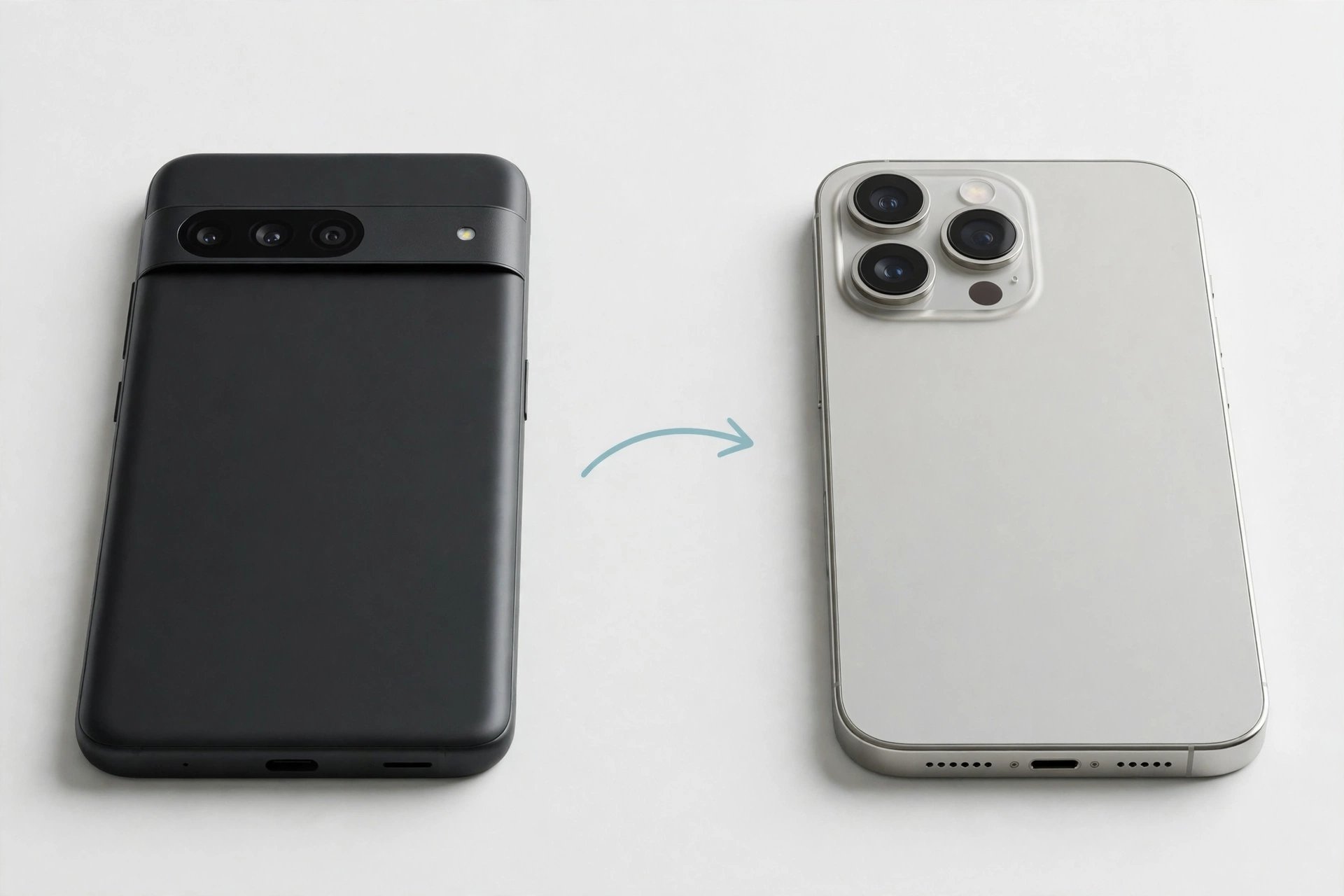
A backup is therefore a safety net for your personal data and settings. It is especially useful before a factory reset your iPhone, because a reset erases the data on the phone itself. If you are moving from another type of phone, you can also transfer data from Android to iPhone once you know your old phone still holds a copy. At Mobile Phones Shops UK, we recommend making a backup before any major change.
how to back up iphone with iCloud
iCloud backup is the simplest option for most people, because it works over Wi-Fi and does not need a computer. Once it is switched on, your phone can back up automatically when it is connected to Wi-Fi, connected to power, and locked. That combination is common overnight.
Before you start, connect to a stable Wi-Fi network and plug your phone in to charge. A backup can take a while the first time, especially if you have a large photo library, so leave the phone alone until it finishes.
Follow these steps to make an iCloud backup:
- Open Settings and tap your name at the top of the screen.
- Tap iCloud, then tap iCloud Backup.
- Check that iCloud Backup is switched on. If it is off, switch it on.
- Tap Back Up Now and wait for the backup to finish.
- Keep your phone connected to Wi-Fi and to power until you see a finished time and date.
After the first manual backup, your phone should handle later backups on its own. If you have recently taken a lot of photos, run a manual backup before you travel, update your phone, or send it for repair.
How do I back up my iPhone to a computer?
A computer backup is useful if you prefer a local copy, if your Wi-Fi is slow, or before a repair. On a Mac, you use Finder. On a Windows computer, you use the Apple Devices app or iTunes, depending on which app is installed.
Follow these steps to back up to a Mac using Finder:
- Connect your iPhone to your Mac with a cable.
- Open Finder and select your iPhone in the sidebar.
- If asked, tap Trust on your iPhone and enter your passcode.
- On the General tab, choose Back up all of the data on your iPhone to this Mac.
- Click Back Up Now and wait for the process to finish.
Follow these steps to back up to a Windows computer:
- Connect your iPhone to your Windows computer with a cable.
- Open the Apple Devices app, or iTunes if that is the app installed on your computer.
- If asked, tap Trust on your iPhone and enter your passcode.
- Select your iPhone in the app and open the backup options.
- Choose to back up to the computer, rather than to iCloud, then click Back Up Now.
On either type of computer, check the time and date of the latest backup after it finishes. Keep the phone connected until the process is fully complete, because unplugging it early can leave you with an incomplete backup.
Should I use iCloud or a computer backup?
Both methods protect your data, but they suit different habits. iCloud backup is automatic and convenient, while a computer backup gives you a local copy and can be useful when Wi-Fi is unreliable.
| Feature | iCloud backup | Computer backup |
|---|---|---|
| How it works | Over Wi-Fi, with no cable | With a cable to a Mac or Windows computer |
| Automatic backups | Yes, when on Wi-Fi, charging, and locked | No, you start each backup by hand |
| Where the copy is kept | In your iCloud account | On the computer you used |
| Best for | Regular, hands-off protection | A full local copy before a major change |
| Needs storage space | Enough iCloud storage | Enough free space on the computer |
How do I check that my backup has finished?
A backup is only useful if it has completed, so it is worth checking rather than assuming that it worked. For an iCloud backup, open Settings, tap your name, tap iCloud, then tap iCloud Backup. The screen should show the date and time of the latest successful backup. For a computer backup, open Finder on a Mac, or the Apple Devices app or iTunes on a Windows computer, and select your iPhone to see the date and time of the latest backup to that computer.
Once you know how to back up iphone data in either way, checking the result becomes a quick habit. Check before an update, a repair, or erasing a phone.
How do I restore my iPhone from a backup?
Restoring from a backup puts your saved data back on a phone, for example after setting up a new iPhone or after a factory reset. To restore from iCloud on a new or freshly erased iPhone, follow the setup steps until you reach the option to restore from an iCloud backup. Sign in, choose the backup, and wait, keeping the phone connected to Wi-Fi and to power.
To restore from a computer backup, connect the phone to the computer that holds the backup. Open Finder on a Mac, or the Apple Devices app or iTunes on Windows, select your iPhone, and choose to restore from a backup. Pick the backup by its date, then confirm and wait. Keep the cable connected until the computer confirms that the process is complete.
Why has my iPhone backup failed?
A failed backup is frustrating, but it is often caused by a simple issue. The most common causes are a weak Wi-Fi connection, a lack of storage, a low battery, or a cable that is not making a proper connection.
First, check your Wi-Fi connection. iCloud backup needs a stable connection, and it may pause or fail if the signal drops. Try moving closer to your router or switching Wi-Fi off and on again. Next, check your storage in Settings, under your name, then iCloud, then Manage Account Storage. Removing old backups for devices you no longer use can free space.
Also check that your phone has enough charge. iCloud backup is designed to run when the phone is charging and locked, so plug it in, connect to Wi-Fi, lock the screen, and leave it for a while. If a manual backup still fails, restart your phone and try again. For a computer backup, check the cable and the port, and tap Trust if asked.
If you have worked through these checks and the backup still will not complete, read the official guidance from Apple in Apple’s official iPhone backup guide.
Frequently Asked Questions
How often should I back up my iPhone?
Ideally, your phone should back up regularly, and automatic iCloud backup is designed to do that when your phone is on Wi-Fi, charging, and locked. Also run a manual backup before an update, a repair, or a move to a new phone.
Does an iPhone backup save my photos?
Yes, photos and videos are normally included, unless they are already stored in iCloud Photos. If you do not use iCloud Photos, a backup may be the only copy of your recent photos.
Can I back up my iPhone without Wi-Fi?
You cannot make an iCloud backup without Wi-Fi, because iCloud backup is designed to work over a Wi-Fi connection. If you have no Wi-Fi, you can back up to a computer instead, using a cable.
How long does an iPhone backup take?
The time depends on how much data is being saved and how fast your connection is. The first backup usually takes the longest. Later backups are often quicker, because they only need to save what has changed.
What should I do if my iCloud storage is full?
If your iCloud storage is full, a new backup may not complete. Check what is using the space, delete what you no longer need, or reduce the amount of data included in your next backup. You can also use a computer backup instead.
Did this fix it? Leave a comment below and let us know what worked.
Leave a Reply