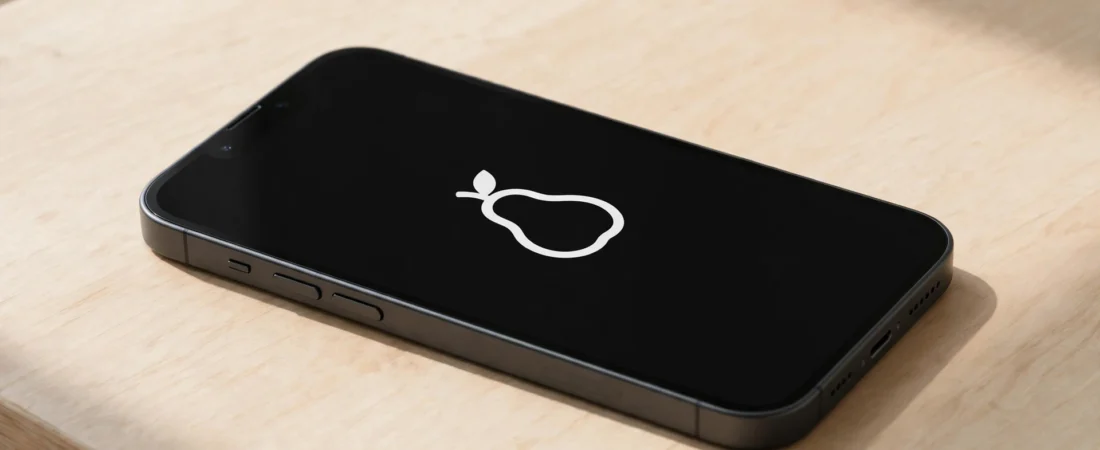
If you need to know how to fix iphone stuck on apple logo, start by waiting a little longer, then try a force restart, and only move on to Recovery Mode if the logo is still there. In most cases, one of these steps gets your iPhone starting again without losing your photos, messages, or apps. Work through the steps below in order, and stop at the first one that works.
Why does an iPhone get stuck on the Apple logo?
Behind the logo, your iPhone is checking its software, loading the operating system, and preparing your apps and settings. If something interrupts that process, the phone can stop halfway and stay on the logo screen.
The most common cause is an interrupted update. A flat battery, a loose cable, or a lost connection during an update can stop the installation part-way through. The phone may also have run out of storage space. In many cases the software is fine and just needs a clean restart.
How to Fix iPhone Stuck on Apple Logo
Follow these steps in order, checking your phone after each one. There is no need to jump ahead to Recovery Mode if a simple wait or a force restart does the job.
Step 1: Wait and watch the progress bar
If a progress bar under the Apple logo is moving, leave the phone alone and give it at least half an hour. Keep it plugged into a charger you trust.
If there is no progress bar, or it has not moved for around an hour, move on to a force restart.
Step 2: Check the charger and cable
Before you restart the phone, rule out a power problem. A phone that keeps showing the logo and then going dark may simply be running out of charge. Plug it into a wall charger rather than a laptop or a car charger, and try a different cable if you have one. Leave it charging for at least half an hour.
Step 3: Force restart your iPhone
A force restart forces the phone to restart its software from scratch, and it does not erase your photos, messages, or apps. The button sequence depends on which iPhone model you have, so use the one that matches your phone.
For iPhone 8 and later, including iPhone X and newer models
- Quickly press and release the volume up button.
- Quickly press and release the volume down button.
- Press and hold the side button until the Apple logo appears, then let go.
For iPhone 7 and iPhone 7 Plus
- Press and hold the volume down button and the side button at the same time.
- Keep holding both buttons until the Apple logo appears, then let go.
For iPhone 6s and earlier, and models with a Home button
- Press and hold the Home button and the top button, or the side button, at the same time.
- Keep holding both buttons until the Apple logo appears, then let go.
After the force restart, give the phone a few minutes to reach the lock screen. If it starts normally, back up your phone as soon as you can. If the logo comes back, move on to Recovery Mode.
What should I do if my iPhone is still stuck after a force restart?
If you have tried waiting and a force restart, the next step is Recovery Mode. This is a built-in repair state that lets a computer reinstall the software on your iPhone. You will need a computer and a cable that connects your phone to it.
Recovery Mode gives you two choices. Choose Update first: it reinstalls the software without erasing your photos, messages, and apps. Choose Restore only if Update does not work, because Restore erases everything on the phone.
If you have tried waiting and a force restart already, the next stage of how to fix iphone stuck on apple logo is to put the phone into Recovery Mode and choose Update.
How do I use Recovery Mode to repair my iPhone?
On a Mac, use Finder. On a Windows computer, use the Apple Devices app, or iTunes if that is what you have installed. Make sure the app on your computer is up to date, and use a cable you trust.
- Connect your iPhone to your computer with a cable, then open Finder, the Apple Devices app, or iTunes.
- Put your iPhone into Recovery Mode using the same button sequence as a force restart for your model, but keep holding until the Recovery Mode screen appears, showing a cable and a computer.
- Keep holding until the Recovery Mode screen appears. If you see the Apple logo first, keep holding until the cable and computer image shows.
- On your computer, a message should appear saying there is a problem with your iPhone. Choose Update.
- Let the computer download and reinstall the software. Leave the phone connected and do not unplug the cable.
- If the download takes a long time and your phone leaves Recovery Mode, let the download finish, then put the phone into Recovery Mode again and repeat the steps.
Never interrupt an update or a restore once it has started. Unplugging the cable or turning off the computer mid-way can make the problem worse. If the phone still returns to the logo, try Update once more before you consider Restore.
If Update does not work after a couple of tries, you may need to choose Restore, which erases the phone. That is why a regular backup matters. See our guide on how to back up your iPhone, and if you do restore the phone, our guide on how to factory reset an iPhone.
What if my iPhone keeps returning to the Apple logo?
A phone that starts, shows the logo, restarts, and shows the logo again is caught in a loop. This usually means the software fault is deeper than a single restart can fix, or there is a hardware problem. Use this checklist to decide what to try next.
| What you notice | What it may mean | What to try next |
|---|---|---|
| Logo appears once, then the phone starts normally | A temporary glitch during start-up | Back up your phone and watch for it happening again |
| Progress bar moves slowly, then finishes | A large update taking its time | Leave the phone charging and wait for the update to complete |
| Logo appears, then the phone restarts on its own | A software fault Recovery Mode may repair | Use Recovery Mode and choose Update |
| Phone stuck after a drop or water damage | A possible hardware fault | Do not keep retrying; contact Apple Support |
| Update finishes, but the logo returns | The software fault was not repaired | Try Update once more, then consider Restore if you have a backup |
When should I contact Apple Support?
Contact Apple Support if you have tried waiting, a force restart, and Recovery Mode with Update, and the phone is still stuck on the logo. Also contact them if the phone is stuck after physical damage, if it feels hot or the battery looks swollen, or if Recovery Mode does not appear at all.
Apple has its own guidance for this problem. See Apple’s guide if your iPhone freezes on the Apple logo for the official steps and for how to arrange a repair if the phone needs one. Be careful about third-party repair tools that promise to fix a stuck iPhone. This guide does not recommend paid third-party repair tools.
Frequently asked questions
Will a force restart delete my photos?
No. A force restart does not erase anything. Your photos, messages, contacts, and apps should still be there when the phone starts again.
How long should I wait on the Apple logo before doing anything?
If a progress bar is moving, leave the phone alone. If nothing has changed for around an hour, try a force restart.
Should I choose Update or Restore in Recovery Mode?
Always choose Update first: it reinstalls the software without erasing your data. Restore erases everything. Only choose Restore if Update has not worked after a couple of tries, and only if you have a backup.
Can I fix this without a computer?
Yes, in many cases. Waiting and a force restart need no computer at all. You only need one if the phone is still stuck after those steps and you need Recovery Mode.
Why does my iPhone keep restarting and showing the logo again?
This is often called a restart loop, and it usually means the software fault is deeper than a force restart can fix. Try Recovery Mode and choose Update. If the loop continues, contact Apple Support.
An iPhone stuck on the Apple logo is usually fixable with patience and the steps in order: wait, force restart, then Recovery Mode with Update. For more help, visit Mobile Phones Shops UK.
Did this fix it? Leave a comment below and let us know what worked.

Leave a Reply