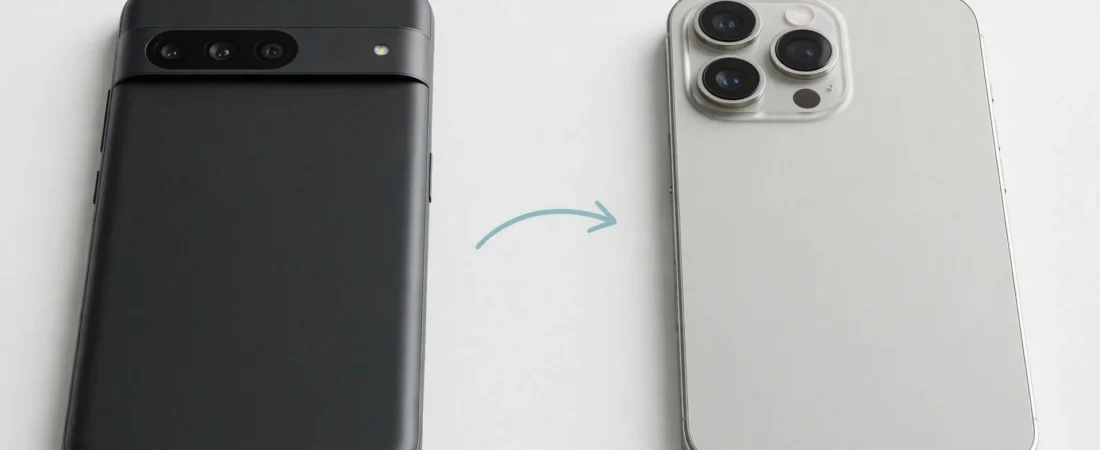
If you want to know how to transfer whatsapp android to iphone, the official way is to use Apple’s Move to iOS app while you are setting up your new iPhone, before WhatsApp is active on it. You do not need a cable, a computer, or extra software.
This guide explains how to transfer whatsapp android to iphone using only the official method. It covers what you need, what moves and what does not, the steps in order, and what to do if WhatsApp is already set up on your iPhone. If you are moving other things too, read our guide to transferring data from Android to iPhone first.
What Do You Need Before You Start?
Timing matters most. The transfer only works during iPhone setup, on a new iPhone or one returned to factory settings, before WhatsApp is active on it. If you have already set up WhatsApp, you will need to start again, as explained below.
Both phones must use the same WhatsApp phone number. If you plan to change it, change it on Android first, in WhatsApp.
- Charge both phones: plug both phones in, or make sure each one has plenty of charge left.
- Use the same Wi-Fi network: both phones need to be on the same network to find each other.
- Update WhatsApp on both phones: install the latest update on each phone first, or the transfer option may not appear.
- Install Move to iOS on Android: this is Apple’s free app for moving from Android to iPhone, from the Google Play Store.
- Keep the phones close together: leave Wi-Fi on, and keep the phones near each other until the move has finished.
- Allow enough time: the move can take a while with years of chats and lots of media.
- Back up Android first: do not delete WhatsApp from Android until everything has arrived on your iPhone.
What Moves Across — and What Does Not?
Not everything in WhatsApp moves across, so it helps to know this in advance.
| Item | Moves to iPhone? |
|---|---|
| Account information | Yes |
| Profile photo | Yes |
| Individual chats | Yes |
| Group chats | Yes |
| Chat history | Yes |
| Media in chats | Yes |
| WhatsApp settings | Yes |
| Call history | No |
| Display name | No |
| Media received over Channels | No |
| WhatsApp Business chats | No — not supported |
Your account information, chats, media, and settings move across, including individual and group chats. Your profile photo moves too.
Three things do not move. Your call history stays behind. Your display name does not move, so set it again after the transfer. Media you received over Channels also does not move.
This official transfer does not support WhatsApp Business. If you use it on Android, this method is not the right route for those chats. Check WhatsApp’s official guide to moving chats from Android to iPhone before you start.
How to Transfer WhatsApp Android to iPhone Step by Step
Follow the steps in order, and do not open WhatsApp on your iPhone until the transfer has finished.
- Install Move to iOS on Android. Find it in the Google Play Store and install Apple’s app. Leave it closed for now.
- Start setting up your iPhone. Switch on your new or factory-reset iPhone and work through the early setup screens.
- Reach the Apps and Data screen. Choose the option to move data from Android.
- Open Move to iOS on Android. Agree to the terms and allow the permissions it asks for.
- Get the code on your iPhone. Tap Continue on the Move from Android screen. A code will appear.
- Enter the code on Android. Type the code into Move to iOS. The two phones will then connect.
- Choose WhatsApp. On Android, select WhatsApp from the list of data you can move, then start the transfer.
- Wait while WhatsApp prepares your chats. Leave both phones alone; this can take a while.
- Let the transfer run to the end. Do not use either phone, and do not switch either phone off.
- Finish setting up your iPhone. Carry on with setup until you reach the Home screen.
- Install WhatsApp on your iPhone. Open the App Store, search for WhatsApp, and install it.
- Open WhatsApp and sign in with the same number. Enter the same phone number you used on Android.
- Tap Start when asked to move your chats. Wait for it to finish, then tap Next.
- Check your chats. Look through your chats and groups to confirm your messages and media have arrived.
Once the chats are showing correctly, set your display name again and check your notification preferences.
What If WhatsApp Is Already Set Up on Your iPhone?
This is the most common reason the transfer option does not appear. The official method only works before WhatsApp has been set up on the iPhone. If you have already opened WhatsApp and signed in on your iPhone, you cannot add the Android chats on top of it.
Do not delete WhatsApp from Android. Your chats are still safe there. First, back up your iPhone, so you do not lose anything else you have set up. Our guide to backing up your iPhone explains the options.
Then return your iPhone to factory settings: Settings, then General, then Transfer or Reset iPhone, then Erase All Content and Settings. Work through setup again, and do not open WhatsApp until the transfer has finished.
What If the Transfer Gets Stuck or Chats Are Missing?
A stuck transfer is often caused by a simple connection problem. Work through these checks one at a time.
Check the Wi-Fi connection on both phones
Make sure both phones are still on the same Wi-Fi network. If either phone has dropped off, reconnect it and try again.
Keep both phones close together and awake
Move the phones close to each other and keep their screens awake if you can.
Restart the attempt from the start
If the transfer has clearly stopped, start again. Restart setup on your iPhone, and reopen Move to iOS on Android. Your chats stay on Android until a transfer completes.
Update WhatsApp and Move to iOS, then try again
Check for updates to WhatsApp on both phones, and to Move to iOS on Android. Then restart both phones and try again.
Chats are missing after the transfer
Check that the transfer fully finished before you opened WhatsApp, as opening it too early can stop the last chats from arriving. Also check you used the same phone number, and look in your archived chats. If a chat is present on Android and still will not move, try again from a fresh iPhone setup.
How Do I Back Up My Moved Chats on iCloud Afterwards?
Once your chats are showing correctly, back them up straight away. The transfer moves your chats to the iPhone, but it does not turn on a regular backup. Without one, a lost phone or a future reset could leave you with no copy of the chats you have just moved.
To back up WhatsApp to iCloud, open WhatsApp, go to Settings, then Chats, then Chat Backup. Make a backup now, and choose whether to include videos. Including videos makes the backup larger, but keeps your shared videos safe.
Turn on automatic backup in the same screen and choose how often it should run. Make sure you are signed in to iCloud, with enough free storage for the backup to complete. Keep your normal iPhone backup switched on too.
Frequently Asked Questions
Can I move my WhatsApp chats after I have finished setting up my iPhone?
No. The transfer has to happen during iPhone setup, before WhatsApp is active. If you have already set up WhatsApp, back up your iPhone, return it to factory settings, and start again.
Do I need the same phone number on both phones?
Yes. Sign in on your iPhone with the same number used on Android, and do not change numbers in the middle of the move.
Will my WhatsApp call history move to my iPhone?
No. Your chats, media, account information, and settings do move, but your past WhatsApp calls will not appear on your iPhone.
Does my display name move across?
No. Your display name does not move, so set it again in WhatsApp on your iPhone after the transfer. Your profile photo does move across.
Can I transfer WhatsApp Business chats this way?
No. This official transfer does not support WhatsApp Business. Do not start this transfer for those chats, and check the official WhatsApp guidance first.
What should I do if the transfer gets stuck halfway?
Check both phones are on the same Wi-Fi network and close together, then restart both phones and try again from a fresh setup. Your chats stay on Android until a transfer completes.
For more helpful guides, visit Mobile Phones Shops UK.
Did this fix it? Leave a comment below and let us know what worked.
Leave a Reply