Learning how to check imei iphone details is quick, and you can do it in under a minute once you know where to look. Your IMEI is a unique number that identifies your handset, and there are several ways to find it.
What Is an IMEI and Why Does It Matter?
An IMEI is a 15-digit number that identifies your individual handset. IMEI stands for International Mobile Equipment Identity. No two phones share the same number, and it stays with the device even if you change your SIM card.
Your network uses the IMEI to recognise your phone. It is separate from your SIM card, your phone number, and your Apple Account. It matters most in these situations:
- Lost or stolen phone: your network can block the handset, so it cannot be used on UK mobile networks even with a different SIM fitted.
- Insurance claim: most insurers ask for the IMEI when you report a phone lost, stolen, or damaged.
- Support and repairs: Apple uses the IMEI, with the serial number, to check your model and warranty cover.
- Buying second-hand: it helps confirm the phone matches the listing and has not been reported lost or stolen.
Your IMEI holds no personal information on its own, but treat it like a private reference number and keep it safe.
How to Check IMEI iPhone in Settings
The Settings app is the easiest place to find your IMEI, and it works on every recent iPhone running the latest software.
- Open Settings on your iPhone.
- Tap General.
- Tap About.
- Scroll down until you see IMEI.
- Touch and hold the number to copy it, then paste it where you need it.
The About screen also shows your model name and serial number. Two IMEI numbers are normal on a model that supports two SIM cards. Copy the number rather than writing it by hand, as one wrong digit can cause problems with a claim or a network block.
Method 2: Dial *#06# in the Phone App
For a faster route, display your IMEI without opening Settings at all.
- Open the Phone app.
- Tap the Keypad tab.
- Dial *#06#, exactly as shown, including the star and the hash.
- Your IMEI will appear on screen straight away. You do not need to press the call button.
This works on almost every mobile phone. The number should match the one in Settings.
Method 3: On the SIM Tray or Engraved on the Back
You can also find the IMEI printed on the hardware itself, which is useful if your phone will not switch on.
Check the SIM tray
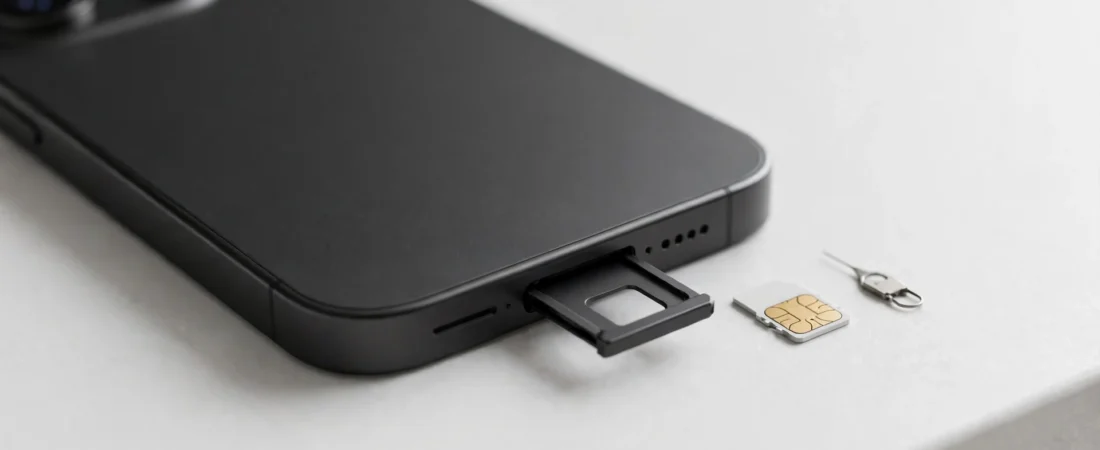
On many models, the IMEI is printed in small text on the SIM tray. Remove the tray with the SIM eject tool, or a straightened paperclip, and look closely at the metal edge.
Check the back of the phone
On some older models, the IMEI is engraved in fine print on the lower back of the handset. Newer models have no engraving, so use another method in this guide instead.
Method 4: On the Original Box
If you still have the box your iPhone came in, the IMEI is printed on the barcode label on the outside of the box.
- Find the original iPhone box.
- Look for the white label with barcodes on the back or the side.
- Find the line marked IMEI and note the 15-digit number beside it.
The label also shows the serial number and model number. This is ideal if your phone is lost or will not switch on.
Method 5: From Your Apple Account on the Web
If your iPhone is lost, you can still find its IMEI through your Apple Account, if the phone was signed in to that account.
- Go to account.apple.com in a web browser on another phone, tablet, or computer.
- Sign in with the same Apple Account you use on your iPhone.
- Open the Devices section.
- Select your iPhone from the list of devices.
- Look for the IMEI in the device details shown on screen.
Use this method when your phone has been lost or stolen and you need the number quickly for your network or your insurer.
Method 6: On a Computer
If your iPhone is connected to a computer, you can find the IMEI there too. This is another way to know how to check imei iphone details without using the phone screen.
On a Mac
- Connect your iPhone to your Mac with a cable.
- Open Finder and select your iPhone in the sidebar.
- Look at the device details at the top of the window. Click the text under your device name to cycle through the details until the IMEI appears.
On a Windows PC
- Connect your iPhone to your PC with a cable.
- Open the Apple Devices app.
- Select your iPhone and look through the device details for the IMEI.
Tap Trust on your phone the first time you connect it. See Apple’s guide to finding the serial number or IMEI for the full official steps.
When Will You Need Your IMEI?
Your phone is lost or stolen
Contact your network as soon as you can and give them the IMEI. They can block the handset, even if someone fits a new SIM card. Report the theft to the police and tell your insurer, if the phone is covered.
You are making an insurance claim
Insurers use the IMEI to confirm the handset is the one listed on your policy. Keep a copy somewhere safe, separate from the phone itself.
You are buying or selling a second-hand iPhone
Before you buy a used iPhone, ask the seller for the IMEI and check it matches the number in Settings and on the box. If the seller cannot show it, or the numbers do not match, walk away.
You need support or a repair
Apple Support often asks for the IMEI or serial number before checking your warranty or booking a repair. Having it ready saves time. Before you hand your phone over, read our guide to backing up your iPhone.
IMEI Checklist: Find It and Keep It Safe
- Find the IMEI in Settings and copy it, rather than writing it by hand.
- Check that it is 15 digits long, with no spaces or extra characters.
- Compare it with the number on the original box, if you still have it.
- Save a copy somewhere secure, away from the phone itself.
- Do not post the IMEI on social media or in a public forum.
If you are moving to a new iPhone, see our guide to transferring data from Android to iPhone.
Warning: Never Share Your IMEI Publicly
Your IMEI is a private identifier, so never share it publicly. Do not post it on social media, in a for-sale listing, or in a public forum.
Sharing the number will not let someone track your phone, and no website can track a phone by IMEI alone. Even so, a shared IMEI can be misused, for example by someone falsely reporting your handset as lost or stolen.
Only share it with your mobile network, your insurer, Apple Support, or a trusted repair service. If a stranger asks for it for no clear reason, do not give it to them.
Frequently Asked Questions
Where is the IMEI on an iPhone?
Settings, under General and then About, is easiest. You can also dial *#06#, check the SIM tray or the original box, or find it through your Apple Account.
Can I find the IMEI if my iPhone is lost?
Yes. Sign in to your Apple Account at account.apple.com, open Devices, and select your iPhone. The number is also on the original box label. Give it to your network straight away so they can block the handset.
Is the IMEI the same as the serial number?
No. The IMEI identifies your handset on mobile networks, while the serial number is used by Apple for support and warranty purposes. Both are shown in Settings under General and then About.
Can someone track my iPhone using only the IMEI?
No. No website or stranger can track your phone by IMEI alone. Only your network can use the IMEI to block a handset. Keep it private and share it only with your network, your insurer, or Apple Support.
Why does my iPhone show two IMEI numbers?
Two IMEI numbers are normal on an iPhone that supports two SIM cards. Each line has its own IMEI, and the first is usually the primary one.
What should I do if the IMEI on the box does not match the phone?
Use the number shown in Settings, as that is the number for the handset in your hand. The box may belong to a different phone. If you bought it second-hand, contact the seller.
For more helpful guides, visit Mobile Phones Shops UK.
Did this fix it? Leave a comment below and let us know what worked.
Leave a Reply