How to factory reset an iPhone: back it up first, sign out of your Apple ID and turn off Find My, then go to Settings > General > Transfer or Reset iPhone > Erase All Content and Settings and confirm. The phone will erase everything and return to the Hello screen, ready to be set up again.
A factory reset cannot be undone, so prepare first. Without a backup, you can lose photos and messages, or end up locked out.
What does a factory reset do?
A factory reset removes all of your personal content and settings and restores the software to its factory state. Afterwards, the phone restarts to the Hello screen, ready to be set up again.
What gets erased?
- Photos and videos stored on the phone
- Messages, call history and voicemail
- Apps and app data
- Contacts, calendars, notes and reminders stored on the device
- Saved Wi-Fi networks and passwords
- Settings, wallpaper, sounds and display preferences
- Payment cards saved in Wallet
Content stored elsewhere is not lost. Photos and contacts synced to iCloud, and purchases linked to your Apple ID, return when you sign in again. Anything only on the phone, and not backed up, will be gone for good.
How do I back up my iPhone first?
A backup is a copy of your data that you can restore after the reset. Back up to iCloud or to a computer, on Wi-Fi, with the phone plugged in to charge.
How to back up to iCloud
- Open Settings and tap your name at the top.
- Tap iCloud, then tap iCloud Backup.
- Turn on Back Up This iPhone if it is not already on.
- Tap Back Up Now and wait for it to finish.
- Stay on Wi-Fi until you see confirmation, with the date and time.
How to back up to a computer
- Connect your iPhone to your computer with a cable.
- Open Finder on a Mac, or iTunes on a Windows computer.
- Select your iPhone when it appears.
- If asked, tap Trust This Computer and enter your passcode.
- Choose to back up your iPhone to the computer and wait for it to finish.
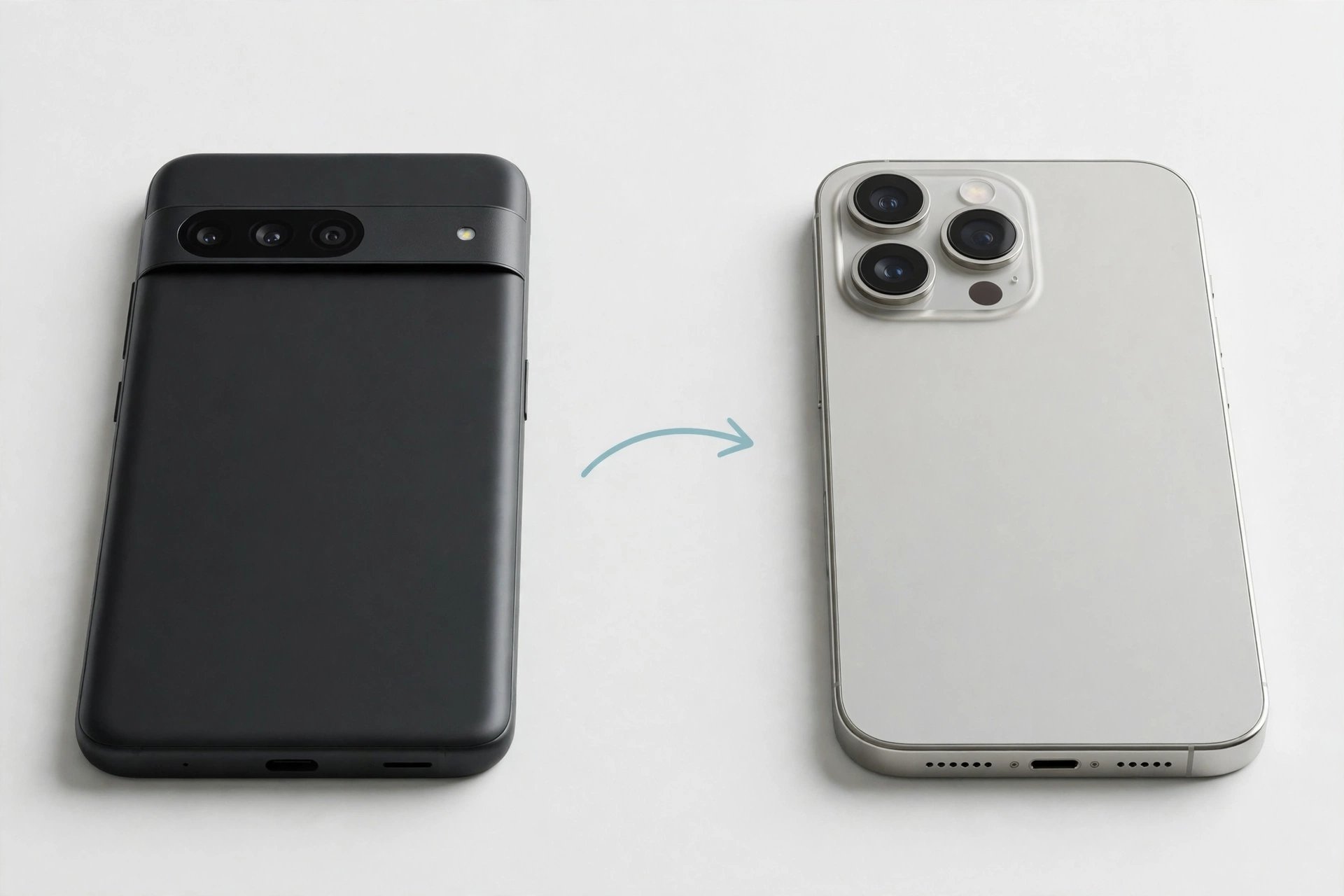
If you are moving from Android, sort that out before you erase anything. See how to transfer data from Android to iPhone so you know what will move across.
How do I sign out of Apple ID and turn off Find My?
Signing out before a reset removes Activation Lock, which stops anyone else using the phone without your Apple ID and password. This matters most if you are selling the phone, giving it away or sending it in for repair.
- Open Settings and tap your name at the top.
- Scroll down and tap Sign Out.
- Enter your Apple ID password when asked.
- Choose whether to keep a copy of any data on the phone. If you are passing it on, do not keep a copy.
- Tap Sign Out again to confirm.
Signing out should also turn off Find My; check under Settings, your name, then Find My. Know your Apple ID password before you sign out — if you have forgotten it, reset it first.
How to factory reset an iPhone in Settings
Once your backup is complete and you have signed out, you are ready to reset. These steps work on a phone that turns on and can be unlocked normally.
- Open Settings.
- Tap General.
- Scroll down and tap Transfer or Reset iPhone.
- Tap Erase All Content and Settings.
- Read the summary on screen, then tap Continue.
- Enter your passcode when asked and confirm that you want to erase the iPhone.
- Wait while the phone erases itself and restarts.
Do not unplug the phone while it is erasing. The erase itself usually takes a few minutes, though a full phone takes longer. Allow extra time for the backup and the restore afterwards. Apple’s guide to factory resetting an iPhone explains the erase steps and what to expect.
How do I set up my iPhone again after a reset?
On the Hello screen, either restore from your backup or set the phone up as new.
Restore from a backup
Choose this if you are keeping the phone and want your photos, messages, apps and settings back.
- Choose a language and region, then connect to Wi-Fi.
- Choose Restore from iCloud Backup or Restore from Mac or PC.
- Sign in with your Apple ID and choose the most recent backup.
- Wait for the restore to finish, keeping the phone on Wi-Fi and plugged in.
Set up as new
Choose this if you are selling or giving the phone away, or if you want a completely fresh start. It is also useful if a backup might carry over the same problem you were trying to fix.
- Choose a language and region, then connect to Wi-Fi.
- Choose Set Up as New iPhone.
- Sign in with your Apple ID, or create one if you do not have one.
- Work through the remaining setup screens, choosing your preferences.
When is a factory reset the right call?
A reset is a useful last step, but not the first thing to try. It may help if the phone keeps freezing, an app keeps crashing despite reinstalling it, or settings behave oddly after a software update. It is also the right step before you sell, give away or recycle a phone.
A reset will not fix every problem. First, check your iPhone battery health — a worn battery can cause slow performance, and a reset will not fix that. It will also not fix physical damage, such as a cracked screen, or a network problem.
When should I not factory reset?
Do not reset if you have not backed up, if you do not know your Apple ID password, or if a second-hand phone may still be signed in to the previous owner’s account. Sort that first.
How do I reset an iPhone if it will not turn on or I forgot the passcode?
If the phone will not turn on, will not unlock, or you have forgotten the passcode, you cannot use Settings. The usual route is to restore it using a computer. This erases the phone, including the passcode.
- Connect the iPhone to a computer with a cable.
- Put the iPhone into recovery mode. The exact button combination depends on the model, so follow the official guidance for your model rather than guessing.
- On the computer, open Finder on a Mac, or iTunes on a Windows computer.
- When the computer offers the choice, choose Restore.
- Wait while the computer downloads the software and restores the phone.
- When the restore finishes, disconnect the phone and follow the setup prompts.
Do not disconnect the phone while the computer is restoring it. If you have forgotten the passcode and you have no backup, the erase will remove your data.
Factory reset checklist
Use this checklist before you tap Erase. If you cannot tick every box, pause and fix that item first.
| Step | Done? |
|---|---|
| Backed up, and checked it finished | ☐ |
| Know your Apple ID password | ☐ |
| Signed out of Apple ID and turned off Find My | ☐ |
| Phone is charged and connected to Wi-Fi | ☐ |
| Checked the battery and tried simpler fixes first | ☐ |
| Ready to set the phone up again afterwards | ☐ |
Frequently asked questions
Will a factory reset delete my photos?
Yes. It deletes photos and videos stored on the phone. If they are backed up, you can restore them afterwards; if not, they will be lost.
Will a factory reset remove my Apple ID?
Not on its own. Sign out and turn off Find My first, or Activation Lock may ask for your Apple ID and password when the phone is set up again.
Can I factory reset an iPhone without the passcode?
Yes, by restoring it with a computer in recovery mode, as above. This erases the phone, including the passcode. You will still need your Apple ID details if Activation Lock is on.
Does a factory reset fix a slow iPhone?
Sometimes, if the slowness is caused by software clutter or a problem app. It will not help if the cause is a worn battery, low storage or a hardware fault.
How do I factory reset an iPhone before selling it?
Back up, sign out of your Apple ID, turn off Find My, then go to Settings > General > Transfer or Reset iPhone > Erase All Content and Settings. Leave it on the Hello screen. That is how to factory reset an iPhone safely before you hand it over.
Will I lose my contacts if I factory reset?
Only if they are stored solely on the phone. Contacts synced to iCloud will come back when you sign in again.
For more help with iPhone repairs and fixes, visit Mobile Phones Shops UK.
Did this fix it? Leave a comment below and let us know what worked.

Leave a Reply