How to check battery health on iPhone: open Settings, tap Battery, then tap Battery Health & Charging. There you will see your Maximum Capacity, a Peak Performance Capability message, and any service notice if the battery needs attention.
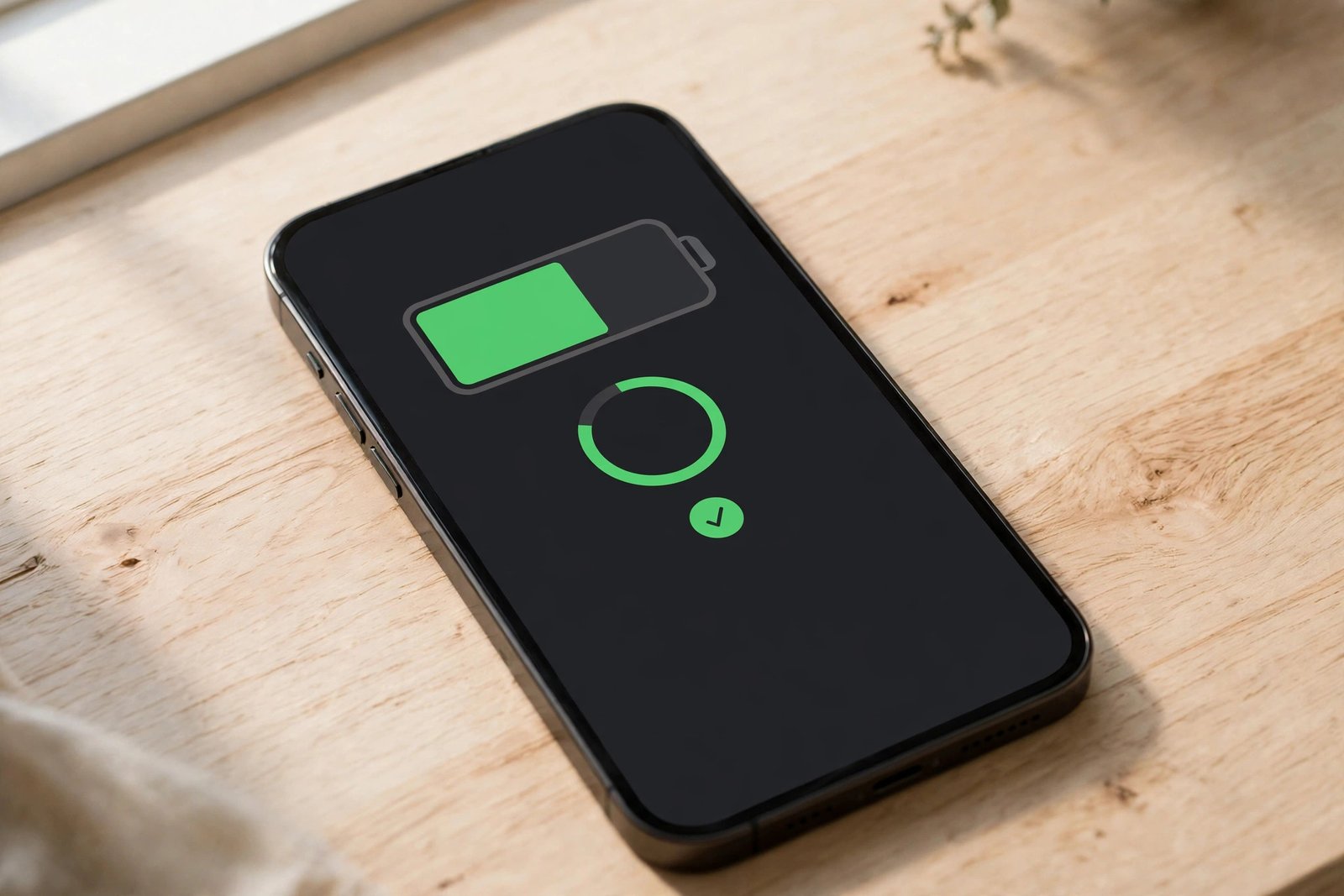
The battery icon shows how much charge is left right now.
How to check battery health on iPhone in Settings
The check takes less than a minute:
- Open the Settings app.
- Scroll down and tap Battery.
- Tap Battery Health & Charging.
- Look at Maximum Capacity.
- Read the message under Peak Performance Capability.
- Read any service message at the top of the screen.
Check this screen every few months rather than only when something goes wrong. A gradual change is normal. A sudden drop, or a new service message, is worth paying attention to.
What is Maximum Capacity?
Maximum Capacity compares your battery now with your battery when it was new. A new iPhone will normally show a figure close to full capacity. As you use and charge the phone over months and years, that figure falls gradually. This is normal wear, not a fault. Every charge cycle wears the battery down a little, and so does age itself.
A lower Maximum Capacity does not mean the battery is broken. It means it cannot store as much energy as it once could, so the charge runs out sooner between charges.
There is no single percentage where a battery suddenly becomes unusable. Capacity drops gradually with use, and a much lower capacity is when most people notice real problems. If your phone still gets you through the day, the number alone is not a reason to panic.
What is Peak Performance Capability?
This section tells you whether your iPhone can still run at full speed, or whether it has reduced performance to protect the battery. Normally, the message says your battery is currently supporting normal peak performance. That is the result you want to see.
As a battery ages, it can struggle to deliver the sudden bursts of power the phone needs when you open an app, take a photo, or load a game. When that happens, your iPhone may shut down unexpectedly, even when the battery icon still shows charge remaining. To stop that happening, iOS can slow the phone down slightly. This is called performance management.
If performance management is on, the screen will say so and let you turn it off — but that brings back the risk of unexpected shutdowns, and iOS will switch it back on after the next one.
What does the battery service message mean?
Sometimes iOS shows a service message instead of a clean Maximum Capacity figure. It generally says the battery’s health has degraded significantly, or that the battery cannot be verified as genuine.
A message about degraded health means iOS has decided the battery can no longer hold a useful charge reliably. You may notice the phone running out of power much faster or shutting down early. It does not mean the phone will stop working immediately, but it is Apple’s way of telling you replacement is worth considering.
What counts as normal wear?
Normal wear is slow and steady. Your Maximum Capacity falls a little at a time over many months, and your phone lasts slightly less long between charges. You might charge it a bit earlier in the evening, or top it up once during a long day out. That is the normal ageing process for a lithium-ion battery, and it happens to every iPhone.
What is not normal is a sudden, sharp fall in capacity over a few weeks, a battery that swells or makes the screen lift, or a phone that gets very hot during light use. Swelling is a safety issue: stop using the phone, do not try to charge it, and get it checked promptly.
How do I read the battery usage graph?
The main Battery screen also shows a graph of your battery level and activity over the last 24 hours, or the last 10 days if you tap that option. It helps you work out whether the problem is the battery itself or an app using too much power.
- Go to Settings > Battery.
- Look at the battery level graph. Steep drops mean the phone was using a lot of power. Flat sections usually mean it was idle.
- Tap Last 10 Days for a longer view.
- Scroll down to Battery Usage by App.
- Tap Show Activity to see how much time each app spent on screen and in the background.
- Look for any app with high background activity.
A phone that drops sharply while idle, or an app with hours of unexpected background activity, points to a drain problem rather than a worn battery. If your graph shows a clear culprit, try the fixes in our guide to iPhone battery draining fast before you assume the battery is finished.
What is the difference between battery health and battery level?
Battery level changes all day, every day: it goes up when you charge and down when you use the phone. Battery health changes slowly, over months. It only goes down as the battery ages, and charging the phone does not restore it.
| Reading | What it means | What to do |
|---|---|---|
| Battery level | How much charge is left right now | Charge the phone |
| Battery health | How much charge the battery can still hold compared with when it was new | Monitor it; replace only when daily life is affected |
| Peak Performance Capability | Whether the battery can still deliver full power | If performance management is on, get the battery assessed |
| Battery usage graph | Which apps used power over the last day or 10 days | Fix the drain by changing settings or updating the app |
What should I do if my battery capacity is low?
If your Maximum Capacity is low and your phone no longer lasts the day, start with the cheaper checks before you spend money on a new battery.
Rule out a drain problem first
- Check the battery usage graph for one app using far more power than the rest.
- Update iOS and your apps, as updates often fix battery-draining bugs.
- Turn off Background App Refresh for apps that do not need it, in Settings > General > Background App Refresh.
- Lower your screen brightness, or switch on Auto-Brightness.
- Turn off Location Services for apps that do not need your location.
- Restart your iPhone to clear stuck processes that can drain power.
If your phone lasts noticeably longer after these changes, the battery was probably not the main problem. You can also switch on Optimised Battery Charging on the Battery Health & Charging screen, and use Low Power Mode on long days out. These habits will not restore lost capacity — only a new battery can do that — but they can make the capacity you have left last longer.
Get the battery assessed
If the drain checks do not help, and the phone still struggles to get through the day or shuts down unexpectedly, get a proper assessment. A repair shop can test the battery, confirm whether it is genuinely worn, and talk you through the replacement options for your model. The team at Mobile Phones Shops UK can assess your battery and advise on the best option for your model. Apple’s guide to iPhone battery and performance explains Maximum Capacity and when a battery needs service.
Frequently asked questions
How often should I check my iPhone battery health?
Every few months is enough for most people.
Is a low Maximum Capacity bad?
Not necessarily. Maximum Capacity falls gradually with use on every iPhone.
Can I improve my iPhone battery health?
You cannot restore lost capacity by changing a setting or running an app. Once a battery has worn, only a replacement restores it. The best you can do is learn how to check battery health on iPhone and watch the number over time.
Why does my battery health drop so quickly?
Heavy use, lots of charging cycles, heat, or a faulty app draining power in the background can all speed up wear.
Should I replace my iPhone battery or buy a new phone?
If the phone still runs well and does everything you need apart from lasting the day, a battery replacement is usually the sensible option. If the phone is also slow, out of storage, or no longer receiving updates, a new phone may make more sense.
Will a factory reset fix my battery health?
No. A factory reset cannot restore lost battery capacity, because the wear is physical, not a software problem. A reset can sometimes help if a software fault is causing excessive drain, but it wipes all your data, so it should only ever be a last resort after you have backed everything up. Read our guide on how to factory reset your iPhone first.
Did this fix it? Leave a comment below and let us know what worked.

Leave a Reply