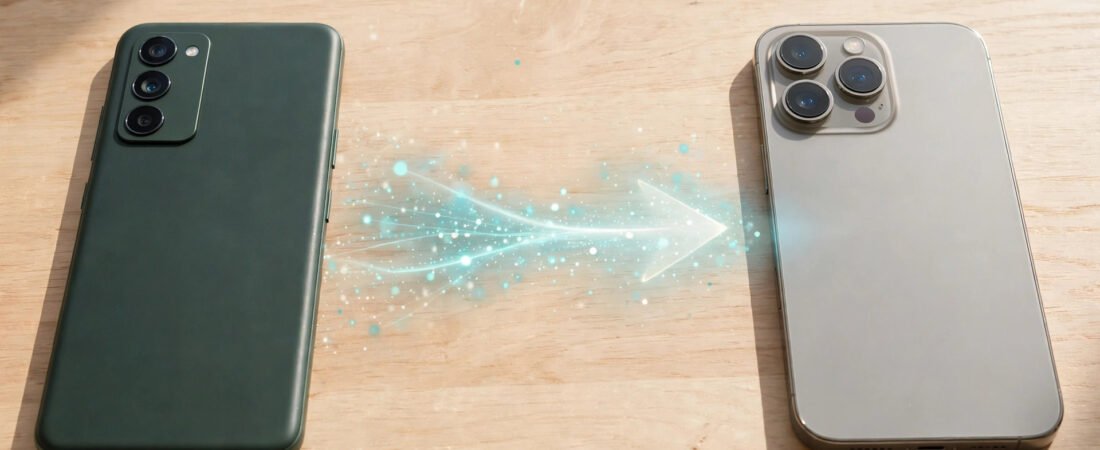
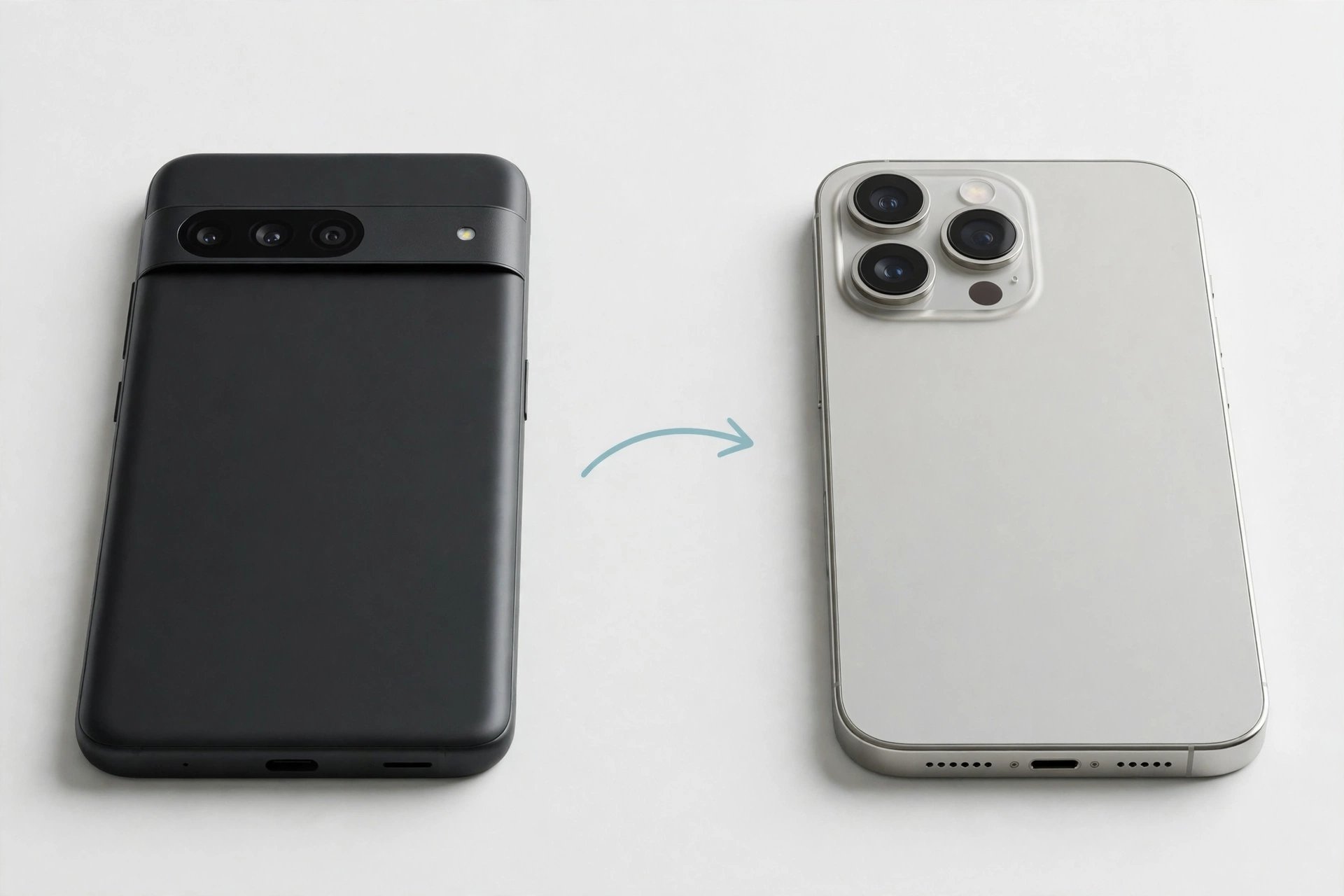
Transfer data Android to iPhone with Apple’s free Move to iOS app while you are setting up your new iPhone. It moves your contacts, messages, photos, videos and most of your accounts over Wi-Fi, without cables or a computer.
What do you need before you start?
- Charge both phones and keep them plugged in during the transfer.
- Use stable Wi-Fi. Both phones need a good home connection, not a weak or public network.
- Check you have enough space. If your iPhone is nearly full, free up storage on your iPhone before you start.
- Turn off mobile data on your Android phone, so it does not switch away from Wi-Fi.
- Leave both phones alone while the transfer runs. Do not answer calls or open other apps.
A small transfer may take a few minutes. A large photo library can take much longer, so pick a time when you will not need either phone.
How do I transfer data Android to iPhone with Move to iOS?
Move to iOS only works during iPhone setup. If you have already finished setting up your iPhone, skip to the section below on what to do next. Apple’s guide to moving from Android to iPhone explains the Move to iOS steps in detail.
First, download the free Move to iOS app on your Android phone from the Google Play Store.
- Turn on your new iPhone and start setup. Follow the steps for language, region and Wi-Fi until you reach the Apps & Data screen.
- Tap Move Data from Android.
- On Android, open Move to iOS, tap Continue, tap Agree, then tap Continue again.
- On your iPhone, tap Continue. A code will appear on the screen.
- On Android, enter that code, then tap Connect or Continue.
- Your iPhone will create a temporary private Wi-Fi network. Your Android phone should join it automatically.
- Choose what to transfer: contacts, message history, photos, videos, albums, files, settings, bookmarks, mail accounts, WhatsApp messages and media, and calendars.
- Tap Continue and leave both phones alone until the loading bar on your iPhone finishes.
- Tap Done on Android, then Continue on your iPhone and finish setup.
Afterwards, check the Photos, Contacts and Messages apps to confirm everything has arrived.
What does Move to iOS transfer, and what does it not transfer?
| What moves | What does not move |
|---|---|
| Contacts and message history | Apps from the Google Play Store |
| Photos and videos | Music, books and PDFs bought outside Apple services |
| Mail accounts and calendars | Android settings and home screen layout |
| Web bookmarks | Files stored only in some Android-only apps |
| WhatsApp messages and media, if selected | Anything stored only on a memory card |
Apps do not transfer directly. Download the iPhone versions from the App Store after setup, and sign in to restore your data. If you bought an app on Android, you will usually need to buy the iPhone version separately.
What if I have already set up my iPhone?
Move to iOS only appears during the first setup. If you have already finished setup, you have two choices: start the iPhone again, or move your data manually.
Should I erase the iPhone and start again?
If you have only just set it up, starting again is usually the cleanest option.
- Back up anything you have already added to the iPhone, such as new photos or notes.
- Follow the steps to factory reset your iPhone.
- When it restarts, go through setup again and choose Move Data from Android.
- Follow the Move to iOS steps above.
A factory reset removes everything on the phone, so only do this if anything important is backed up somewhere else.
How do I transfer data manually?
- Contacts and calendars: Sync them to your Google account on Android. On your iPhone, go to Settings, then Mail, then Accounts, add your Google account, and turn on Contacts and Calendars.
- Photos and videos: Use Google Photos, as explained below, or copy them to a computer and then onto your iPhone.
- Messages: Old texts are the hardest part to move manually. If they matter to you, starting again with Move to iOS is usually better.
- WhatsApp: Follow the WhatsApp steps below. You can move chats without erasing your iPhone.
- Other files: Upload documents to Google Drive, then download them on your iPhone.
How do I move WhatsApp chats from Android to iPhone?
If you are still setting up your iPhone, select WhatsApp in the Move to iOS transfer list. Make sure WhatsApp is installed on both phones, and use the same phone number on both.
If you have already set up your iPhone, use the transfer tool in WhatsApp itself.
- On your iPhone, download WhatsApp and sign in with the same phone number you used on Android.
- On Android, open WhatsApp, go to Settings, then Chats, then Move chats to iOS.
- Follow the on-screen steps to connect the two phones.
- Keep both phones unlocked and close together until the transfer finishes.
- Open WhatsApp on your iPhone and check your chats and photos have arrived.
Do not delete WhatsApp from Android until you have checked everything has arrived.
How do I move photos from Android to iPhone with Google Photos?
- On Android, open Google Photos, sign in, turn on backup, and wait for your photos and videos to finish uploading. Stay on Wi-Fi and keep the phone charged.
- On your iPhone, download Google Photos and sign in to the same Google account.
- Your photos should now appear in the app. Give it time to load a large library.
- To save copies in the iPhone Photos app, open a photo, tap share or save, and save it to your device. You can select several photos at once.
What if the transfer is not working?
Why is the code not appearing?
The code appears after you tap Continue on the Move from Android screen. If nothing appears, go back a step and try again, and check you are on the Apps & Data screen during setup. If you have already finished setup, the option is no longer available. Use the manual methods above, or erase the iPhone and start again.
Why does the Wi-Fi keep dropping?
The transfer uses a temporary Wi-Fi network created by your iPhone. If your Android phone keeps leaving it, turn off mobile data and any setting that switches to mobile data when Wi-Fi is weak. Move the phones closer together, and do not use either phone during the transfer. Restarting both phones and trying again often helps.
Why is the transfer stuck?
A transfer can look stuck when it is simply slow, so leave it alone for a few minutes. If it has stopped, check both phones are charged, on Wi-Fi, and unlocked. If it does not resume, cancel, restart both phones, and start again. If it keeps failing at the same point, move less at once, leaving large videos out and moving them later.
For more help with switching phones, visit Mobile Phones Shops UK.
Frequently asked questions
Can I transfer data from Android to iPhone after setup?
Yes, but not with the full Move to iOS transfer, which only works during setup. After setup, move contacts, calendars, photos and files manually, move WhatsApp chats with its built-in tool, or erase the iPhone and start again. You can still transfer data Android to iPhone after setup using the manual methods above.
Do I need a cable to transfer data from Android to iPhone?
No. Move to iOS works over Wi-Fi and does not need a cable. WhatsApp’s own transfer tool may ask you to connect the phones, depending on the method it offers.
Will I lose my WhatsApp chats when I switch to iPhone?
Not if you move them properly. Select WhatsApp during the Move to iOS transfer, or use the Move chats to iOS option in WhatsApp after setup. Do not delete WhatsApp from Android until you have checked your chats have arrived.
How long does it take to transfer data from Android to iPhone?
It depends on how much you are moving. A small transfer may take only a few minutes. A large library with thousands of photos and videos can take much longer. Keep both phones charged and on Wi-Fi, and leave them alone until it finishes.
Can I transfer my apps from Android to iPhone?
No, apps do not transfer directly. Download the iPhone versions from the App Store after setup. Signing in to the same account will usually restore your data inside the app.
What should I do with my old Android phone after the transfer?
First, check that everything important has arrived. Once you are sure, sign out of your accounts and reset the Android phone if you plan to sell it, give it away, or trade it in. Do not reset it before you have checked the transfer.
Did this fix it? Leave a comment below and let us know what worked.
Leave a Reply