If you are wondering how to fix iphone no service, start simple: toggle Airplane Mode, restart your iPhone, and check your SIM.
No Service means your iPhone cannot reach your mobile network, so calls, texts, and mobile data will not work until it returns. Wi-Fi still works, so many people only notice the problem away from home. This guide from Mobile Phones Shops UK walks through how to fix iphone no service step by step.
What Does No Service Mean?
Your iPhone shows No Service when it cannot connect to any mobile network, so calls, texts, and mobile data will not work. You may also see:
- No Service: your iPhone cannot find or connect to your network provider at all.
- SOS only: your iPhone cannot reach your own network, but it can still call emergency services through another network.
- Searching: your iPhone is looking for a network. This often clears after a few moments. If it stays, treat it as No Service.
Most of the time the cause is simple: a glitch, a loose or damaged SIM, an out-of-date setting, or a coverage or account problem.
Quick Checks First
Run through these quick checks first — they often explain the problem.
- Coverage: signal can vanish indoors and in rural areas. Step outside or move near a window. If it only happens in one place, it is a coverage issue.
- Other people: ask someone nearby on the same network if they have signal. If not, there may be an outage.
- Outage or account: on Wi-Fi, check your provider’s status page and your account. A missed payment, a plan change, or a number still transferring can pause service.
- Recent changes: a new SIM, a new plan, an update, or a drop are all clues. Start with the matching fix.
If none explains it, work through the fixes below in order.
How to Fix iPhone No Service
Work through these fixes in order, starting with the quickest. Give your iPhone a few moments to reconnect after each step.
Fix 1: Toggle Airplane Mode
This forces your iPhone to drop its connection and search for the network again.
- Swipe down from the top-right corner for Control Centre.
- Tap the aeroplane icon to turn Airplane Mode on.
- Wait a few moments, then tap it again to turn it off.
- Check whether your signal bars return.
You can also use the Airplane Mode switch in Settings.
Fix 2: Restart Your iPhone
A restart clears temporary glitches that can block the connection.
- Hold the side button and either volume button until the power-off slider appears.
- Drag the slider to switch your iPhone off.
- Wait a few moments, then hold the side button until the Apple logo appears.
- Check whether your signal has returned.
With a Home button, hold the side button alone, or use Settings > General > Shut Down.
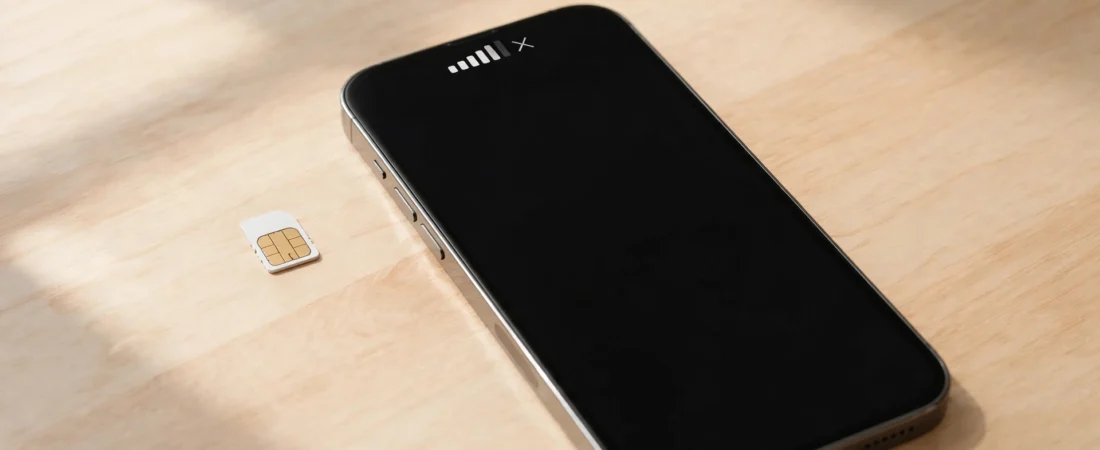
Fix 3: Check and Reseat Your SIM
A SIM that has moved or been damaged can block the connection.
- Switch your iPhone off.
- Push a SIM ejector tool or paperclip into the hole beside the tray.
- Take the SIM out and check the gold contacts for scratches or marks.
- Wipe it gently with a soft, dry cloth if it looks dirty.
- Put the SIM back the right way round and push the tray firmly in.
- Switch your iPhone on and check.
Try the SIM in another phone if you can. If it works there, the fault is likely with your iPhone; if not, the SIM or your account is the cause, and your provider can send a replacement. eSIM users should check Fix 5.
Fix 4: Check for a Carrier Settings Update
Providers release carrier settings updates from time to time. These small files help your iPhone connect, and a missing one can cause problems.
- Connect to Wi-Fi.
- Go to Settings > General > About.
- Wait a few moments. If an update is available, a message will ask you to update.
- Tap Update, then check your signal.
No message means your carrier settings are up to date.
Fix 5: Check Cellular Settings and SIM Lines
A setting may have been switched off, or the wrong line selected on a two-number iPhone — common after an update, a new SIM, or a plan change.
- Go to Settings > Mobile Service (Mobile Data on some iPhones).
- Check that Mobile Data is switched on.
- For Dual SIM or eSIM, check your line is on and selected for calls and data, and switch off any old line.
- If one line shows No Service while the other works, the problem is with that line.
Fix 6: Update Your iPhone Software
Software updates often fix connection problems, so older software can leave a known bug in place.
- Connect to Wi-Fi and plug in to charge.
- Back up first — see our guide on how to back up your iPhone.
- Go to Settings > General > Software Update.
- If an update is available, tap Download and Install and follow the on-screen steps.
- Once your iPhone has restarted, check your signal.
If your software is up to date, move on. Only install software from this screen.
Fix 7: Reset Network Settings
If nothing above has worked, reset your network settings to clear any damaged or incorrect setting.
It erases saved Wi-Fi networks and passwords, Bluetooth pairings, VPN settings, and mobile data settings. Photos, apps, and messages are not deleted, but back up first anyway.
- Go to Settings > General > Transfer or Reset iPhone.
- Tap Reset, then Reset Network Settings.
- Enter your passcode if asked, then confirm.
- Your iPhone will restart. Rejoin your Wi-Fi network and check your signal.
This is not a factory reset, which erases everything. Only consider one as a last resort, after a full backup — see our guide on how to factory reset an iPhone.
Fix 8: Turn On Data Roaming When Travelling
If your iPhone says No Service abroad, data roaming may be off. Roaming lets your iPhone use a local network outside your home country.
- Go to Settings > Mobile Service, then Mobile Data Options.
- Switch Data Roaming on.
- Wait a few moments and check your signal.
Check with your provider whether roaming is included in your plan and works where you are. If it still fails, restart your phone and pick a local network by hand under Network Selection, with Automatic off.
When to Contact Your Network Provider
Some causes sit with your provider, not your phone:
- Your account is suspended, or a payment was missed.
- You have just changed provider or moved your number.
- A new SIM is active but still shows No Service.
- Others nearby on the same network have No Service too.
- Your SIM works in another phone but not in yours.
- The handset may be blocked, for example if it was reported lost or stolen.
Your provider can check your account and SIM, look for faults in your area, and send a replacement SIM. Tell them what you have already tried.
Could It Be a Hardware Fault?
A hardware fault is the least common cause, but consider it if every fix above has failed — No Service on every SIM, in every location, after a network settings reset, or No Service that began after a drop or contact with water.
If so, contact Apple Support for advice and to arrange a check. First, read Apple’s guide if you see No Service or SOS on your iPhone for the official steps. Do not open your iPhone yourself.
Frequently Asked Questions
Why does my iPhone say SOS only instead of No Service?
SOS only means your iPhone cannot reach your own network, but another network will carry emergency calls. Ordinary calls and mobile data will not work, so work through the same fixes, starting with Airplane Mode, a restart, and a SIM check.
Why does my iPhone keep losing signal?
It is often a coverage problem, especially if it only happens in certain places. A loose or damaged SIM, out-of-date carrier settings, or a software bug can also cause it. Start with the quick checks above.
Will resetting network settings delete my photos?
No. It only erases network settings: saved Wi-Fi passwords, Bluetooth pairings, VPN settings, and mobile data settings. Your photos, apps, and messages stay put — but back up first anyway.
Does No Service mean my iPhone is broken?
Not usually. It is most often a SIM problem, a setting, your account, or a lack of coverage. Only suspect a hardware fault if No Service continues on every SIM, in every location, after a reset.
Can I still use Wi-Fi when my iPhone says No Service?
Yes. Wi-Fi is separate from your mobile network, so browsing, apps, and messaging over Wi-Fi still work. Ordinary calls and texts will not work until your signal returns.
Did this fix it? Leave a comment below and let us know what worked.
Leave a Reply