If you are wondering how to fix iphone not charging, start with the simplest checks first: inspect the cable and charger, clean the port gently, try another socket, and restart your phone before assuming the battery or the port has failed.
An iPhone that will not charge is frustrating, especially when you need it for work or travel. In most cases, though, the cause is small and easy to put right. A worn cable, a loose plug, dust in the port, or a faulty socket can all stop charging, even when the phone itself works normally.
How to Fix iPhone Not Charging: A Step-by-Step Guide
Try these steps in order. Most people find the answer in the first few.
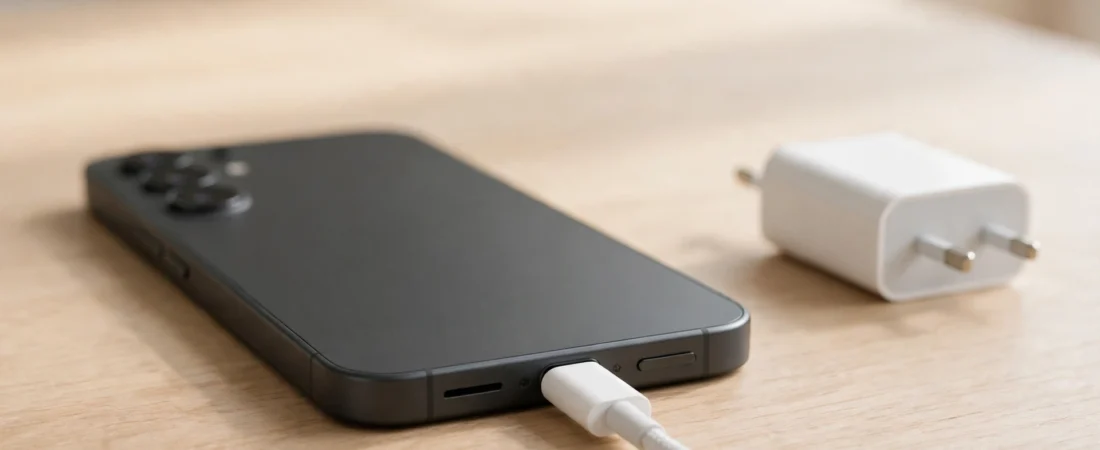
- Check the cable. Look for fraying, kinks, or a bent connector. If it only works at an angle, try a different cable.
- Check the charger and socket. Push the charger fully in and switch the socket on. Try a different wall socket, and avoid extension leads for this test.
- Look inside the port. Shine a light into it and look for lint or dust. Clean it gently, using the method below.
- Try another cable and charger. Borrow a set you know works. If the phone charges with those, your original cable or charger is faulty.
- Restart your iPhone. A restart can clear a temporary glitch that stops the phone from recognising the charger.
- Check for moisture. If the phone has been in rain or a damp pocket, let it dry fully before you plug it in again.
- Try wireless charging, if your model supports it. Place the phone centrally on a wireless charger and look for the charging symbol.
- Leave it plugged in. A flat battery may need several minutes before the screen shows anything. Give it at least fifteen minutes.
Check Your Cable and Charger First
The cable is the most likely culprit, and the easiest part to test. Cables wear out near the connector, and one can look fine outside yet fail to carry power reliably.
Try a different cable, and plug the charger directly into a wall socket, not a laptop or adapter. Some laptop ports supply less power, which can slow or stop charging. If the phone charges normally with a different set, replace the faulty part.
Clean the Charging Port Safely
The port sits at the bottom of the phone, open to pockets, bags, and dust. Over time, lint can build up inside and stop the connector from seating fully. When that happens, the cable may feel loose, or the phone may charge only now and then.
Switch the phone off first. If you can see lint, use a soft, dry, non-metallic tool, such as a wooden toothpick, to lift it out very gently. Never use metal or a sharp tool, as these can damage the pins. After cleaning, the cable should sit firmly. If you are not comfortable doing this, ask a repair specialist.
Try Another Charger, Cable, and Socket
If cleaning does not help, change one thing at a time. Start with the socket, as wall sockets can fail and extension leads can be overloaded. Plug the charger directly into a different wall socket that you know works.
Next, change the cable, then the charger. If the phone charges with a different cable, the original cable is at fault. If it charges with a different charger, the original charger is at fault. If none of these changes helps, the fault is more likely in the phone itself.
Restart Your iPhone and Check for Heat and Cold
Sometimes the hardware is fine, but a temporary software issue stops the phone from charging. Switch the phone off, wait a few moments, and switch it back on. Then plug the charger in again and look for the charging symbol.
Also check whether the phone is very hot or very cold. Apple states that iPhones work best between 0 and 35 degrees Celsius. If the phone is too hot, after being left in sunlight or a warm car, it may pause charging to protect the battery. Let it cool in the shade, then try again. If it is very cold, let it warm up indoors first.
If your phone charges slowly, or the battery runs down quickly, read our guide to an iPhone battery draining fast and check your iPhone battery health.
Check for Debris and Moisture
Moisture is a common cause of charging problems, especially after rain, a spill, or time in a steamy bathroom. If your phone shows a liquid detection alert, or you know it has been exposed to water, unplug it straight away.
Leave the phone in a dry, well-ventilated place, with the port facing down, and let it dry naturally. Do not put it in rice, do not use a hair dryer, and do not insert anything into the port. Wait until it is fully dry before you plug a cable in again, as charging a wet port can damage the phone.
Try Wireless Charging
If your iPhone supports wireless charging, testing it can tell you a lot. Place the phone centrally on a compatible wireless charger, remove any thick case or metal attachment first, and look for the charging symbol. A case with a metal ring or card holder can block wireless charging, so test without the case if you can.
When the Battery or Port May Need Professional Attention
If you have tried a different cable, charger, and socket, cleaned the port, restarted the phone, and tested wireless charging, and it still will not charge, consider professional help. The cause may be a worn battery, a damaged port, or a fault inside the phone.
Seek help straight away if the port feels loose after cleaning, the phone gets unusually hot, the battery swells, or the phone only works while plugged in.
If you have worked through every step and still need to know how to fix iphone not charging, note everything you have tried and share it with the repair specialist. Tell them which cables and chargers you tested, whether wireless charging worked, and whether the phone shows any charging symbol. That will help them diagnose the fault faster.
Before you book a repair, check whether the phone is still covered by a warranty or by Apple support. Read the official guidance here: Apple Support on iPhone charging issues. At Mobile Phones Shops UK, we cover common iPhone problems in plain language, so you can work out whether a fix is simple enough to try at home.
| Symptom | Likely cause | Try first |
|---|---|---|
| Nothing happens when plugged in | Faulty cable, charger, or socket | Try another cable, charger, and socket |
| Cable feels loose | Lint in the port | Clean the port gently |
| Charging starts and stops | Worn cable or dirty port | Swap the cable, then clean the port |
| Charges wirelessly, not by cable | Fault with the wired port or cable | Test a known working cable |
| Phone is hot and will not charge | Phone is too warm | Let it cool, then try again |
| Only works while plugged in | Worn battery or internal fault | Seek professional advice |
Frequently Asked Questions
Why is my iPhone not charging at all?
The most common causes are a faulty cable or charger, a socket with no power, lint in the port, or moisture. Test another cable and charger, try another socket, clean the port, and restart the phone.
How do I know if my charger or my iPhone is the problem?
Test your iPhone with a different cable and charger that you know work. If it charges, your original cable or charger is faulty. If not, the fault is more likely in the phone, port, or battery.
Is it safe to clean the charging port myself?
Yes, if you do it gently with a soft, dry, non-metallic tool. Switch the phone off first, and lift lint out slowly. Never use a metal pin. If you cannot see the debris, ask a specialist.
Why does my iPhone charge slowly?
Slow charging can come from a low-power charger, a worn cable, a thick case, or a phone that is too hot or cold. Try a wall charger and remove the case.
Can moisture stop my iPhone from charging?
Yes. If the port is wet, the phone may refuse to charge to protect itself. Unplug it, leave it in a dry place with the port facing down, and wait until it is fully dry.
When should I get my iPhone repaired?
Get help if it still will not charge after trying a different cable, charger, and socket, cleaning the port, restarting it, and testing wireless charging. Also seek help at once if the battery is swollen or the port is damaged.
Did this fix it? Leave a comment below and let us know what worked.
Leave a Reply