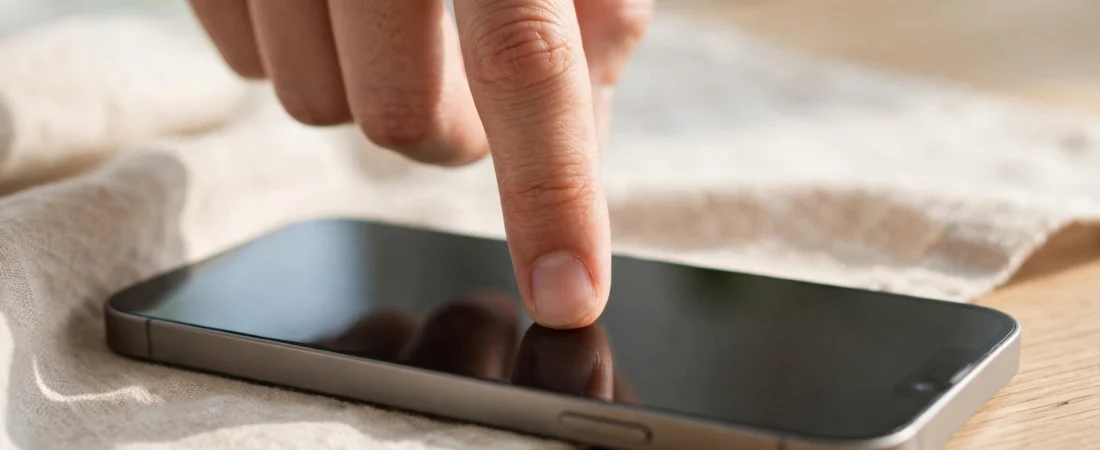
If you are wondering how to fix iphone screen not responding, start with the simplest checks: clean the screen, remove the case and screen protector, and force restart your iPhone.
Many cases are caused by dirt, a poor-fitting case, a faulty charger, or a temporary software glitch, and you can often sort them out at home. This guide from Mobile Phones Shops UK works through the checks in order, from the quickest to the more involved.
What Does a Screen Not Responding Mean?
When a screen is not responding, taps and swipes do nothing, or only part of the screen reacts. The display may light up normally, but nothing happens when you touch it.
Notice what is happening first, as it points you to the right fix. Is the whole screen affected, or only one area? Does it happen in one app, or everywhere? Did it start after a drop, contact with water, or fitting a new case or protector? A problem in one app is very different from a screen that ignores every touch.
Quick Checks Before You Start
| What you notice | Try first |
|---|---|
| Screen is dirty, wet, or greasy | Clean and dry the screen |
| New case or screen protector | Remove the case and protector |
| Only one app is affected | Close the app and restart |
| Whole screen is frozen | Force restart your iPhone |
| Screen is cracked or has a dead area | Arrange a check with Apple Support |
If the screen starts working, you have found your cause. If not, work through the fixes below, testing after each step.
How to Fix iPhone Screen Not Responding
Work through these fixes in order, starting with the quickest.
Fix 1: Clean the Screen
Dust, grease, and moisture can stop the screen from sensing your finger. Unplug your iPhone, then wipe the screen with a soft, dry, lint-free cloth, in gentle circles, covering the whole screen including the edges. If it is damp, dry it fully first. Avoid paper towels, rough cloths, and household cleaners, as these can scratch the screen. Test it with a clean, dry finger, as wet hands and gloves can stop it responding.
Fix 2: Remove the Case and Screen Protector
A case or screen protector can press on the edges of the screen, trap dirt underneath, or lift slightly and confuse the touch sensor. Take the case off and test the screen. If it still does not respond, peel the protector off carefully, clean the screen again, and test it once more. If it works without them, the accessory was the problem, so try one that fits your model properly.
Fix 3: Disconnect Accessories and Chargers
A damaged charger or cable can interfere with touch, so the screen may behave oddly while plugged in and work fine once unplugged. Unplug any charger, cable, adapter, or dock, then test the screen. If it works now, try a different charger and cable.
Fix 4: Force Restart Your iPhone
A force restart can clear a freeze that a normal restart cannot, because it does not need the screen to work. It will not delete your photos, apps, or messages.
For an iPhone with Face ID, or a newer model without a Home button, press and quickly release volume up, press and quickly release volume down, then press and hold the side button until the Apple logo appears. For an iPhone with a Home button, press and hold the Home button and the side button together until the Apple logo appears. Wait for your iPhone to start up fully, then test the screen.
Fix 5: Check Whether One App or the Whole Screen Is Affected
If the screen works on the Home Screen but freezes inside one app, the app itself is the likely cause. That distinction matters when you are working out how to fix iphone screen not responding, because a faulty app needs a different fix from a screen fault. Leave the app if you can and test a different one. If only one app is affected, close it fully and reopen it, or delete it and install it again from the App Store.
Fix 6: Use Siri and AssistiveTouch
If the screen will not respond at all, Siri and AssistiveTouch can help you control your iPhone. Press and hold the side button, or say “Hey Siri”, then ask Siri to open Settings, turn on AssistiveTouch, or call a contact. AssistiveTouch adds an on-screen button that can stand in for taps and the Home button. Find it in Settings > Accessibility > Touch > AssistiveTouch, or ask Siri to turn it on. Use this time to back up your iPhone — see our guide on how to back up your iPhone.
Fix 7: Check Touch Accommodations
Touch Accommodations changes how your iPhone reacts to touch, and it can help if the screen is too sensitive or not sensitive enough. Go to Settings > Accessibility > Touch > Touch Accommodations, and check whether it is switched on. If it is on and you did not mean to switch it on, switch it off and test the screen. If the screen is too sensitive, try switching it on and adjusting the settings slowly, testing after each change. Make one change at a time, and switch a setting back if it makes things worse.
Fix 8: Update Your iPhone Software
Software updates often include fixes for touch and display problems. Connect to Wi-Fi, plug your iPhone in to charge, and back it up first if you can. Go to Settings > General > Software Update, and if an update is available, tap Download and Install. Once your iPhone has restarted, test the screen again. Only install software from this screen. See also our guide on how to update your iPhone software.
When Is It Likely to Be Hardware?
Software fixes cannot repair a damaged screen. Suspect hardware if the problem started after a drop or knock, the screen is cracked, one area never responds, the screen flickers or shows lines, your iPhone has been in contact with water, or every fix above has failed. A screen can also fail without visible damage. If it only fails when the phone is warm, let it cool down first — our guide on how to fix iPhone overheating explains how. Do not keep pressing the screen if you suspect damage.
What Not to Do
- Do not press hard on a cracked screen. Extra pressure can spread the crack and cut your finger.
- Do not open your iPhone yourself. It can damage the battery and other parts, and may void any remaining cover.
- Do not use heat to dry a wet phone. Let it dry naturally, and do not charge it while wet.
- Do not install a paid third-party repair tool. These apps cannot fix a touch problem.
How Do I Arrange a Repair?
If none of the fixes above has worked, or the screen is cracked, arrange a check with Apple Support. Before you contact them, note what you have tried and whether the phone was dropped or got wet. Back up first if you still can.
For the official steps, read Apple’s guide if the screen isn’t working on your iPhone. If your iPhone is still under cover, ask about that, and do not let anyone other than an authorised repairer open your phone. If Apple Support advises it, a factory reset may be suggested after a full backup — see our guide on how to factory reset an iPhone.
Frequently Asked Questions
Why is my iPhone screen not responding to touch?
It is often a dirty screen, a case or protector pressing on the display, a faulty charger, or a temporary freeze. Clean the screen, remove the case and protector, then force restart your iPhone. If the screen is cracked, it is more likely hardware damage.
Will a force restart delete my photos?
No. A force restart only restarts your iPhone, in the same way as switching it off and on again. Your photos, apps, messages, and settings stay put.
Can a screen protector cause touch problems?
Yes. A protector that is lifting, badly fitted, or too thick can stop the screen from sensing touch, especially near the edges. Remove it and test the screen without it.
When should I get my iPhone screen repaired?
Get it checked if the screen is cracked, one area never responds, the screen flickers, or every fix in this guide has failed. Contact Apple Support and tell them what you have tried.
Did this fix it? Leave a comment below and let us know what worked.
Leave a Reply